XPeria Z2 Software Update

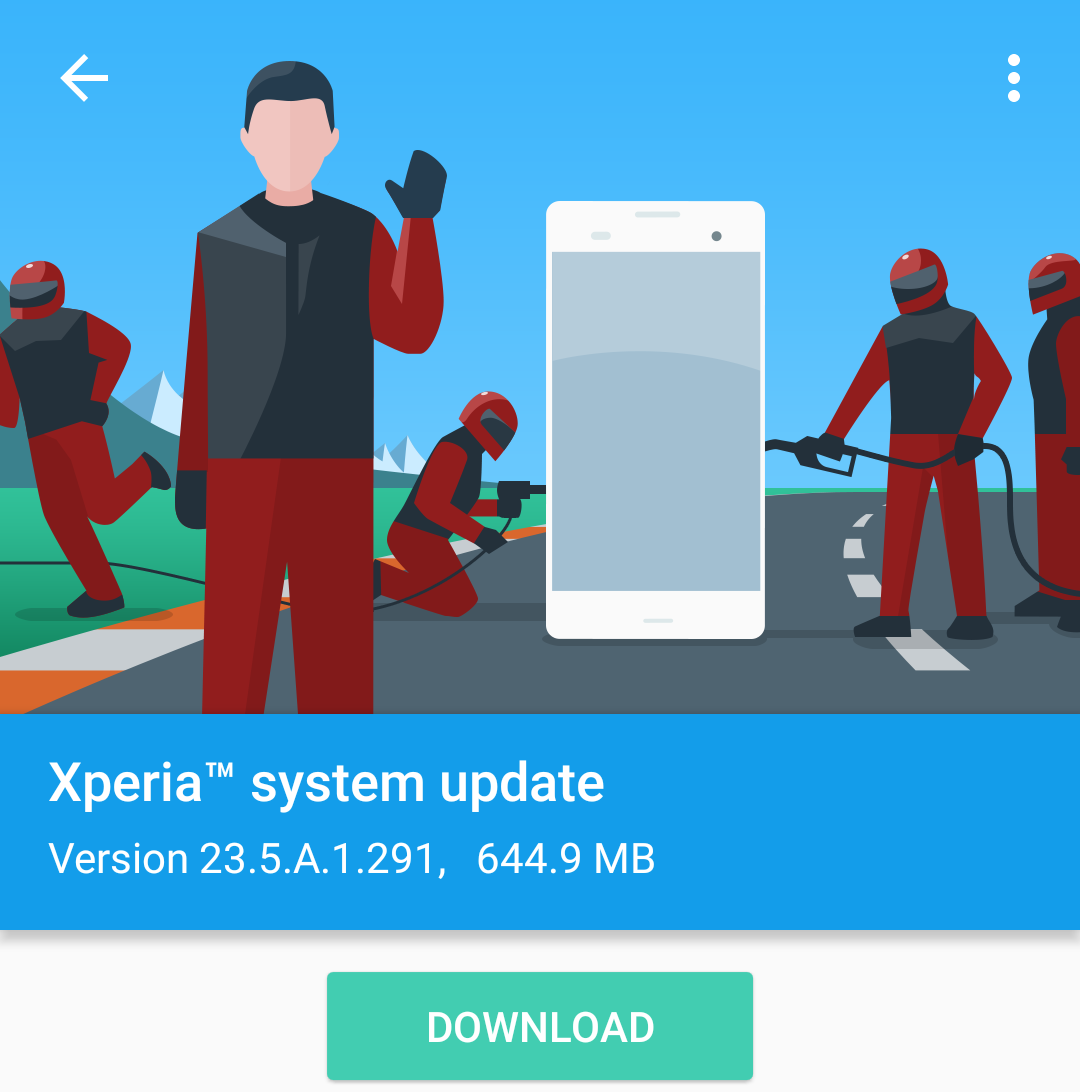
This morning a message popped up on my Xperia Z2 asking to download the Xperia System Update 23.5.A.1.291 (644.9 MB). If I remember correctly it’s the 3rd system update from SONY to its Xperia Z2. The system already has Android Marshmallow 6.01

Screenshot_20160808-132736.png

After downloading and applying 319 updates the first thing it said that a new SD card has been detected and it needs to be set up or ejected. I touched on setup and all done. Next, message talked about the

Charging Optimization(recommended). The amount of charge has been adjusted to increase battery lifespan.

This may shorten the usage time of your device.

You can change this setting in Settings–>About Phone–>Status–> Charging Optimization.

Will see how good is this new optimization feature.

How to Setup Google TV with Charter Digital Box

Starting from 10th June 2014, Charter has gone all digital. They are providing the set top boxes free for 1 year to all customers. Now we need to know how to set up your HDTV with a Charter Box.

To start with, if you have a HDTV you can get the input from the Box via HDMI Cable that they are providing with the Box. You need to connect the COX cable to box for input and you are just set with the cables. Connect box with the power supply and change input in TV set from ‘built in tuner’ to HDMI.


T-Mobile Internet Settings for Unlocked Phones

If you purchase a phone from T-Mobile you can use the data connection as soon as you open the browser. But, in case you have an unlocked phone you need to set it up to access the internet. The APN settings for the T-Mobile data connections are as follows. The settings are shown as in the Xperia SL phone by SONY.

Screenshot_2013-01-06-08-24-26

Screenshot_2013-01-06-08-24-37

Enhanced by Zemanta

AT&T Data Settings for Unlocked (Android) Phones

I bought an Android phone from Sony Ericcson to use with my AT&T wireless carrier. I have now set up my device to use the data connection with tethering without rooting or installing any third party software on the device.

So, here are the settings:

First, go to Settings–> Wireless and Networks–>Mobile Networks–>Access Point Names

and from the menu choose +New APN.

Now fill in the details:

Name: You can choose on your own

APN: wap.cingular

Proxy: wireless.cingular.com

Port: 80

UsernameWAP@CINGULARGPRS.COM

Password: CINGULAR1

Server:

MMSC:

MMS Proxy:

MMS Port:

MCC: 310

MNC: 410

Authentication type: PAP or CHAP

APN Type:

APN protocol: IPv4


Enhanced by Zemanta

Cheapest way (VOIP Service) to Call INDIA

Here, I am going to tell you the most economical way to call India. Of course everybody knows that the Voice over Internet Protocol (VOIP) has already made the international calling a lot more easier and cheaper.

Now even Google provides the option to call phones worldwide using their Google Voice/Gmail account. For India they ask 0.02 $ per minute. Skype‘s rates are expensive if you choose to pay as you go option which is 0.092 $ per minute. Skype rates are competitive to Google Voice when you choose monthly subscription with Skype.

 Yet, there are cheaper options available. Since last almost two years I was using Action Voip and Rynga to VOIP services to call India.

They were charging $ 0.01 and $ 0.009 per minute (excluding tax). Recently I discovered that another VoIP provider that I had used in the past (almost 4 years back) is charging super economical $ 0.006 per minute to call India on cell phones.

The rates shown in the picture are just revised ones seems from 1st of June, 2012 although its still most economical ‘pay as you go’ option to call India over internet. Well, these are the rates of Just Voip, You can sign up and download the application for your PC or Mobile by visiting their site!

And, Please don’t forget to comment here if you find any cheaper option than this one, me and of-course other reader would highly appreciate it.


Enhanced by Zemanta